Vertical cross section

Fig. 27 Vertical cross-section actor, together with a transfer function.
Description
The vertical cross-section actor renders vertical 2-D cross-sections of one or more forecast data fields along an arbitrary path defined by waypoints. Each field can be displayed as filled contours, line contours, or both.
Multiple named waypoint lists can coexist in a session; each cross-section actor can be assigned a different one.
Waypoints can be exported to and imported from files compatible with the DLR Mission Support System (MSS).
An optional flight track overlay renders the waypoints’ flight altitude as a line or tube with a shaded area below.
Horizontal pressure isolines are drawn at configurable pressure levels.
Waypoints
The vertical section is drawn along a path interpolated from a waypoints list. Each session can hold multiple named waypoints lists. Select which list this actor uses with the Waypoints property. This lets multiple cross-section actors show different paths simultaneously, each driven by its own waypoints list.
Managing waypoints
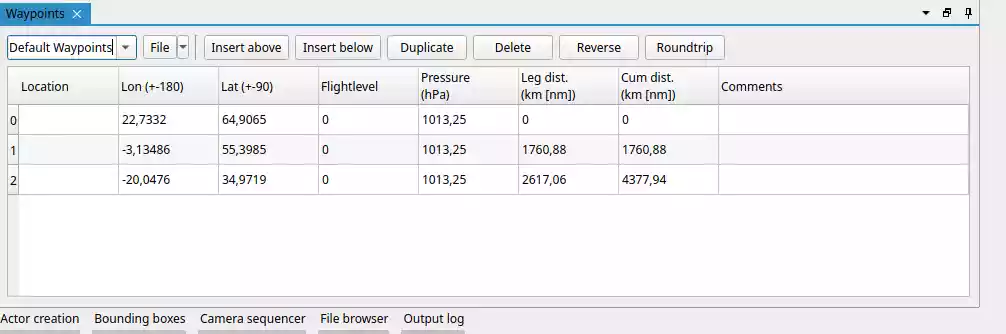
The waypoints dock is accessible at the bottom of the window or from the View menu. It contains a dropdown to select which track is currently shown and edited, and a tool button that opens a file menu with the following actions:
New: create a new empty track in the session.
Open: load a track from an XML file (MSS-compatible format); adds it to the session.
Save / Save as: write the current track to its file or prompt for a new path.
Close: remove the current track from the session.
The track name can be changed by editing the text in the dropdown directly. The table below the dropdown lets you edit each waypoint’s lon, lat, and flight level directly. Additional buttons allow inserting a waypoint above or below the selected row, duplicating it, deleting it, reversing the full track order, or closing it into a round trip.
Interactive editing
In a scene view’s interaction mode (double-click or default keybind I to enable), waypoints and the midpoints between them are shown as draggable handles. Dragging a waypoint moves that point; dragging a midpoint translates the entire adjacent segment. A lon/lat label follows the cursor during dragging.
Vertical extent and tick marks
The Bounding box assigned to the actor controls the top and bottom pressure limits of the section. The horizontal extent of the bounding box is not used.
- Tick unit
Whether levels are specified in Pressure (hPa) or Flight level (FL).
- Tick levels
Comma-separated list of levels, or a range formatted as
[start, end, step].- Label every n-th tick
Only every n-th tick is labelled, to avoid crowding.
- Display unit
When enabled, the unit string is appended to each label.
Appearance
- Opacity
Global opacity of all filled-contour layers (0 = transparent, 1 = opaque). Line contours are not affected.
- Interpolation node spacing
Controls how densely the path between waypoints is sampled before interpolating data values onto the section (in degrees). Smaller values produce a smoother section at the cost of higher GPU memory use and computation time. The default (0.15°) is suitable for most applications.
Flight track
Enable Flight track to overlay the waypoints’ altitude profile on the cross-section. The flight level stored for each waypoint is converted to pressure and rendered as a line or tube running across the section, with a semi-transparent filled area below it. This makes it easy to relate the aircraft’s position to the meteorological fields in the section.
- Render mode
Line (flat 2-D line rendered at fixed pixel width) or Tube (3-D shaded tube).
- Track colour
Colour of the track line or tube.
- Track thickness
Line width in pixels (Line mode) or tube radius (Tube mode).
- Area colour
Fill colour, including alpha, of the shaded region between the track and the bottom of the section. Reduce alpha for a more subtle overlay.
- Ignore upper bbox boundary
When enabled (default), the track is drawn up to the waypoints’ actual flight altitude even if that altitude lies above the section’s upper pressure boundary. Disable to clip the track at the upper boundary.