Image
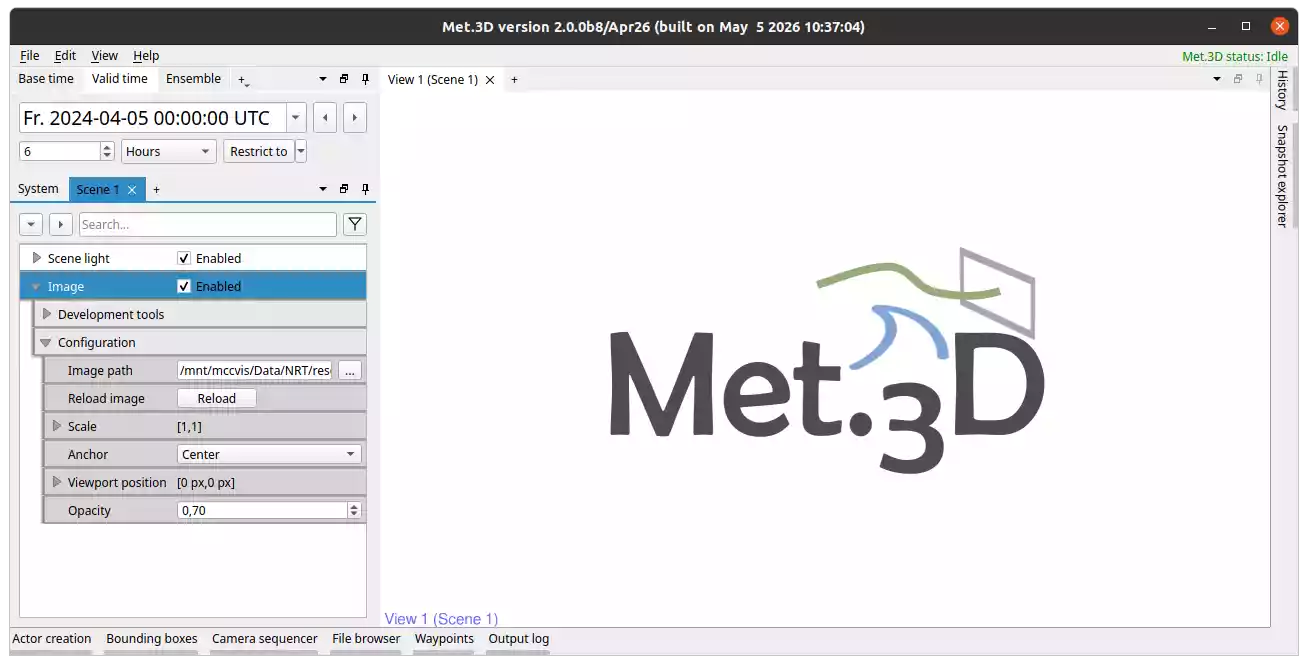
Fig. 18 Image actor.
Overview
The image actor overlays a 2D image onto the rendered scene. It is typically used to add logos, watermarks, or annotations to visualizations exported from Met.3D.
Key features:
Supports common image formats, including PNG, JPEG, BMP, and TIFF.
Can be interactively repositioned by dragging in actor interaction mode.
The image is anchored to a screen corner or the screen centre; position is specified as a pixel offset relative to the chosen anchor.
Width and height can be scaled independently.
Opacity can be adjusted to make the image more or less transparent.
Loading and Configuring an Image
Open the Image → Configuration panel.
Click
...next to Image path to load an image from your file system.Choose an Anchor (
Center,Bottom left,Bottom right,Top left,Top right). The anchor is shown as a small red marker in the scene in interaction mode. Enable interaction mode by clicking the shortcut (default I) on the focused view.Adjust Scale to resize the image. The X component scales the width, the Y component the height.
Adjust Opacity as needed.
Use Reload image to reload the image from disk if the file has changed.